Installation Instructions for SadadQAR Magento Extention
Requirements
- Have File Manager/FTP access to the hosting
- SSH access
Installation Steps
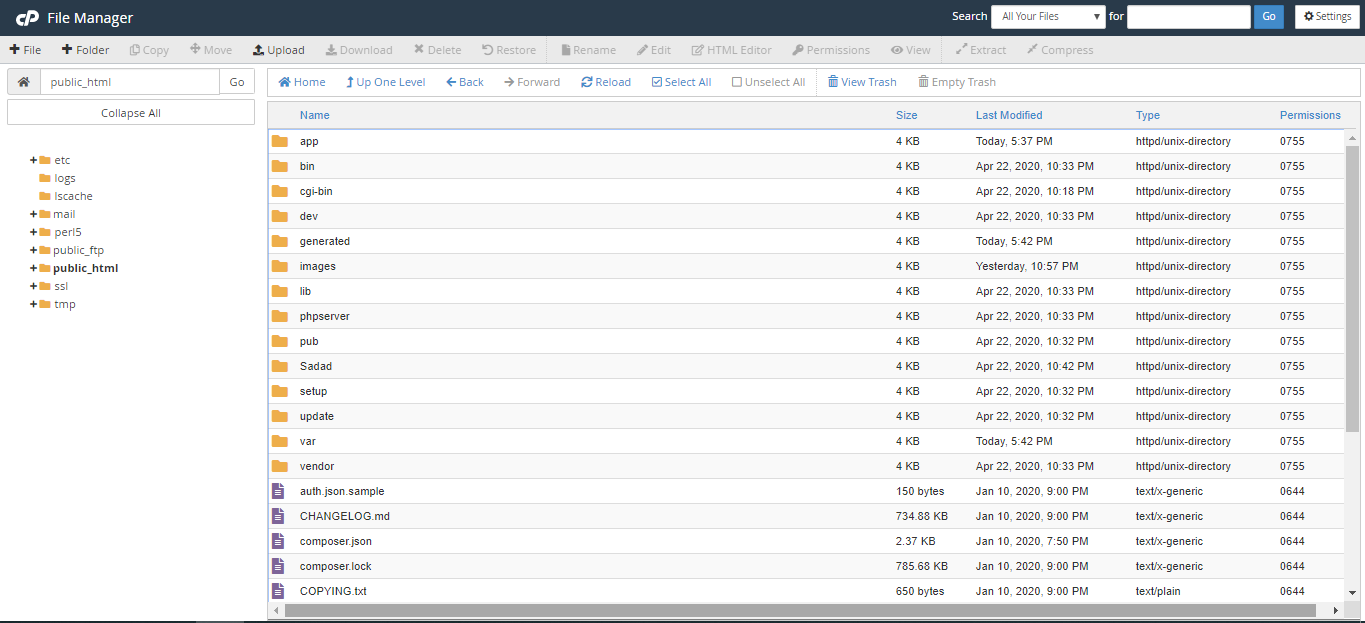
- Login to FTP or File Manager and locate your Magento installation directory. In most cases, its under your public_html or www directory. It should look like below screenshot:
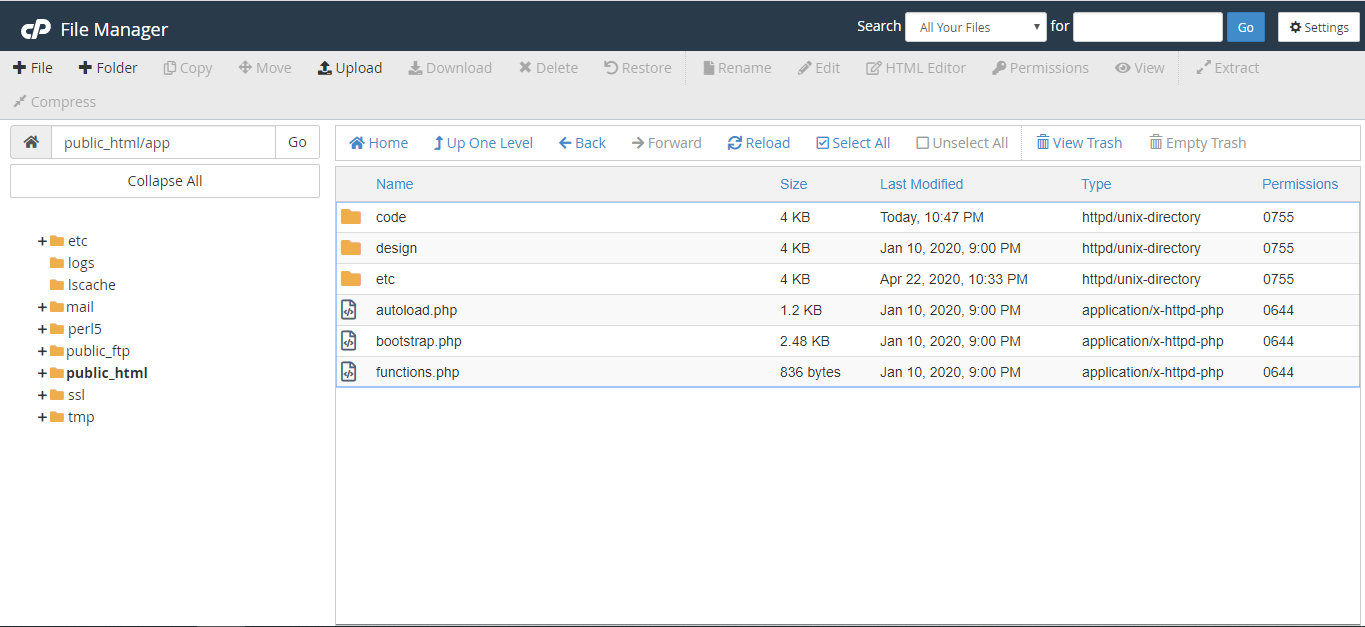
- Go to app directory and Upload sadadqar_payment_gateway.zip file there and unzip it in same directory(app directory).
- If using FTP, unzip the sadadqar_payment_gateway.zip to your local computer first and upload the unzipped folder (folder name is code) to app directory. If code folder already exists, it will just place new code files there.
- Now your app directory should look like image below:
- Check inside code folder. There should be a directory with name "Sadadqar".
SSH Steps
- Now login to SSH using Putty or Web SSH and go to Magento installation folder.
- Write command and hit enter: "php bin/magento module:enable Sadadqar_Magento --clear-static-content" (without quotes)
- If you’ve entered above command correctly and at proper place (i.e. in Magento installation folder), extension is installed. See image below:
- Now run command: "php bin/magento setup:upgrade" (without quotes)

Admin Settings
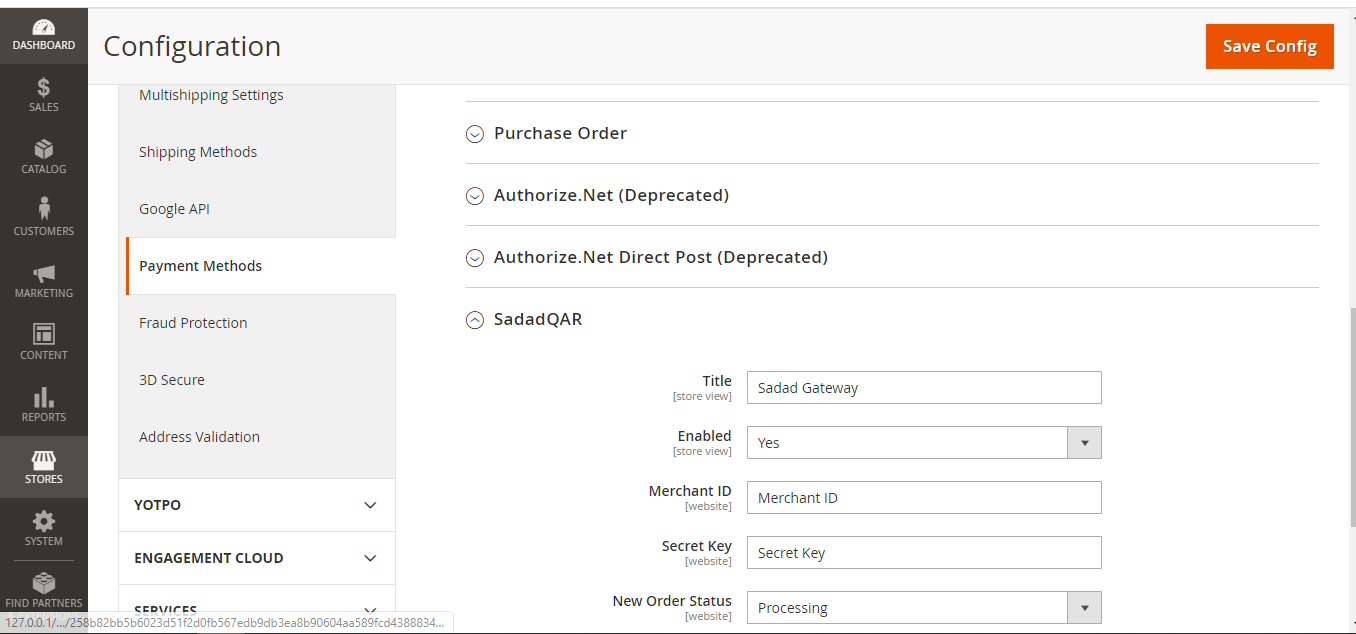
- After completing all steps above. You can now login to Magento admin and go to Stores > Configuration > Sales > Payment Methods.
- There you should be able to see SadadQAR method like image below:
- Specify your Sadad ID (or Merchant ID) in Merchant ID field and Enabled to Yes.
- Enter Secret Key generated from Sadad API settings. Please note that the Secret key is valid only for domain entered at the time of key generation. If your site domain is different than the generation domain, this payment method won’t work.
- Set New order Status to Suspected Fraud instead of processing.
- After that click Save config button.
- Go to System > Cache management and select all checkboxes. Then at top left, select Refresh from dropdown and click Submit. This will ensure that your payment method settings (Merchant ID, Secret key) are now applicable on your website.
- On frontend while checking out, you will see Pay with Sadad option in payment methods and whenever you click Pay with Sadad button, it will redirect you to Sadad.