Steps to start accepting payments via SADAD Flutter SDK
Getting Started
This flutter plugin is a wrapper around our Android and iOS SDKs. The following documentation is only focused on the wrapper around our flutter Android and iOS SDKs. To know more about our SDKs and how to link them within the projects, refer to the following documentation: To know more about Sadad payment flow and steps involved, read up here: 👉 DOWNLOAD SAMPLE CODE
Prerequisites
Sign up for a Sadad Account and generate the API Keys from the Sadad Dashboard. Using the Test keys helps simulate a sandbox environment. No actual monetary transaction happens when using the Test keys. Use Live keys once you have thoroughly tested the application and are ready to go live.
Prerequisites For Google Pay (production only)
- Register your business from Google Pay Console. For a hassle-free go live process, register the business under the same Google account which is used for your application on Google PlayStore.
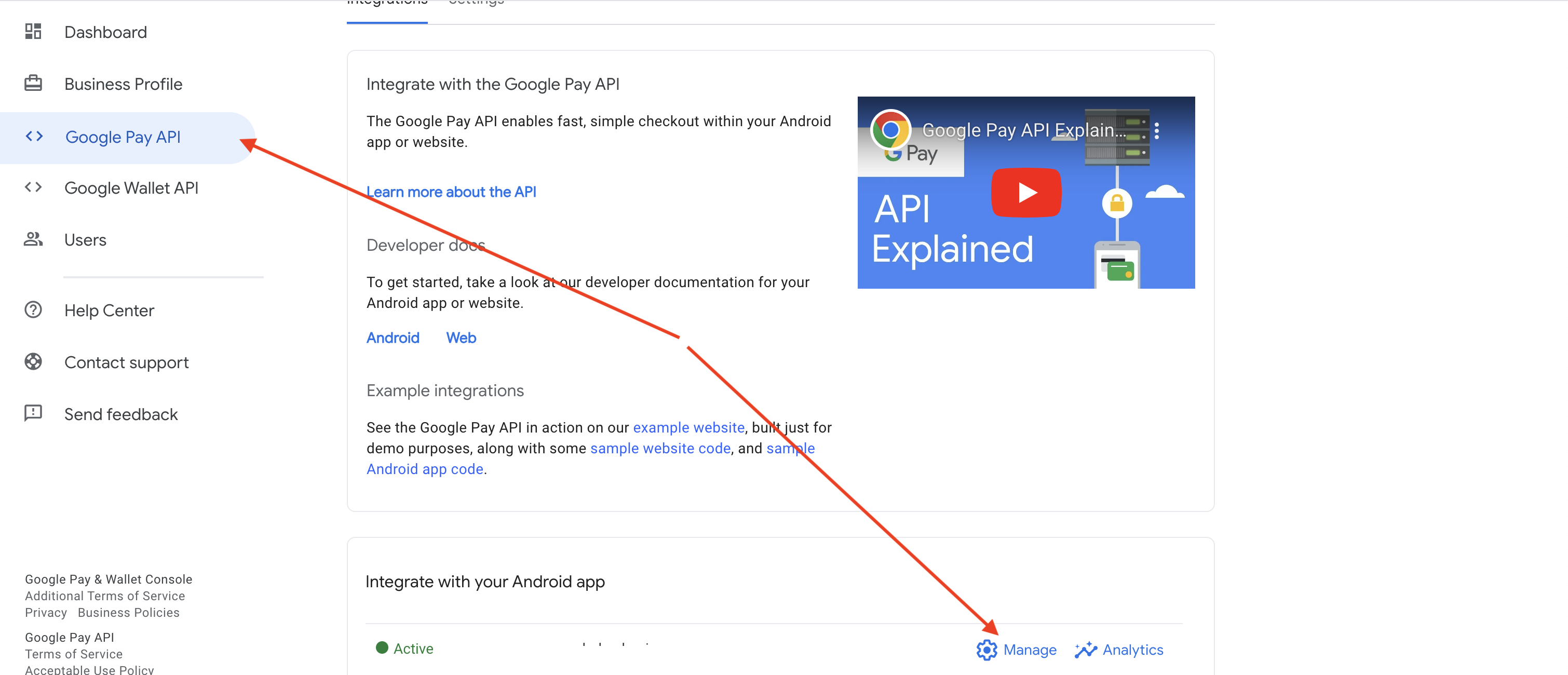
- Once the basic regsitration and verification on Google Pay is completed, visit the above link again and go to Google Pay API from the left side menu. You should see your hosted Google Play applications there.
- Click on the Manage button under relevant application to which you want to integrate Google Pay using Sadad Flutter SDK. The application will be in "Not started" state initally.
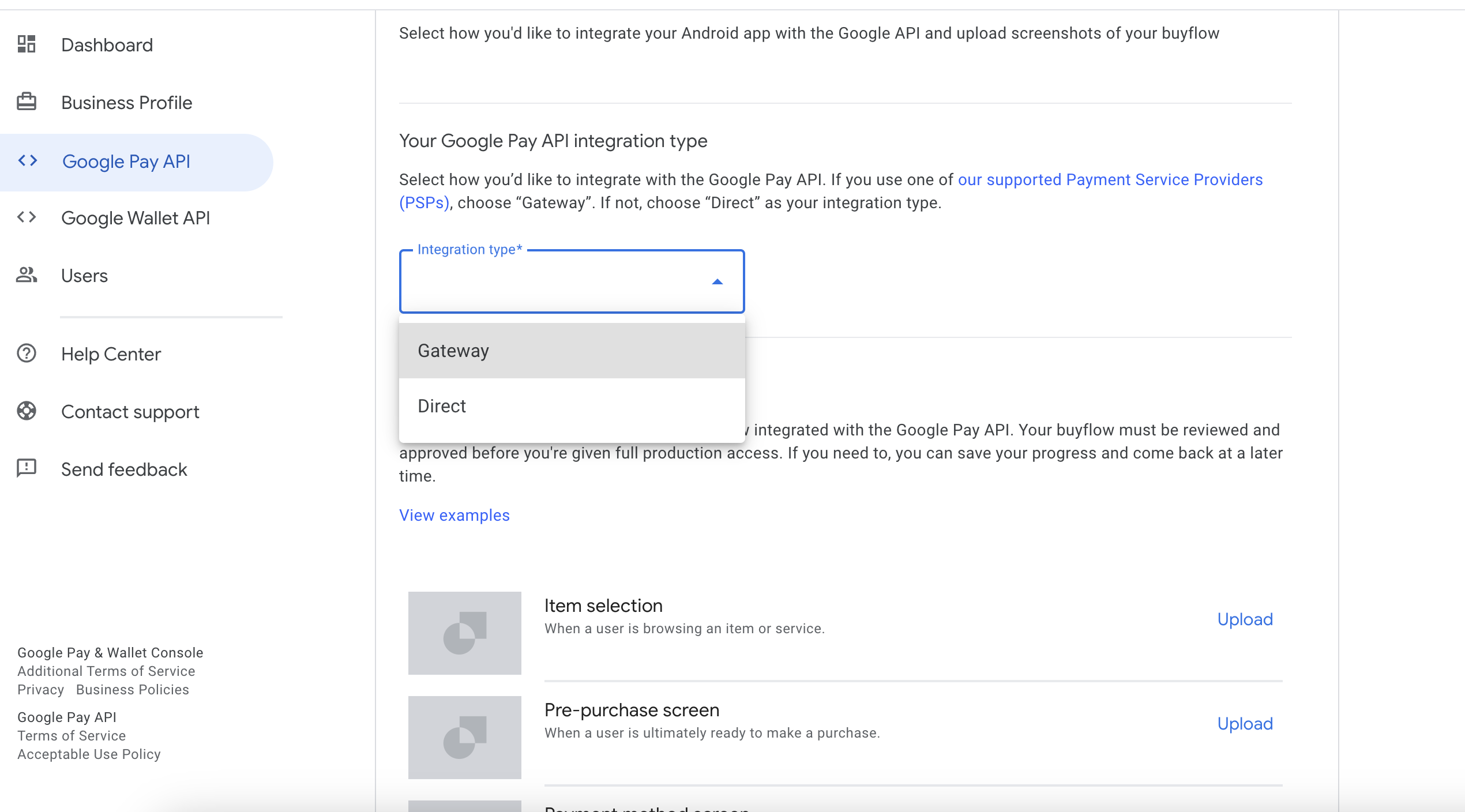
- On the next page select Integration type "Gateway". Under "Screenshots of your buyflow" upload all the relevant screenshots from your Flutter application with Sadad Flutter SDK integrated with sandbox mode enabled. You may click View Examples button to see sample screenshots.
- Once uploaded submit the application for review by accepting terms and conditions and checking the items in the checlist.
- You will recevie an email from Google Pay once your integration with app is verified. Visit Google Pay business console again from the link mentioned above and on the top right side, you will see your Google Pay merchant ID.
- While initiating Sadad Flutter SDK in the live mode with walletenabled parameter set to true, pass your Google Pay merchant ID in googleMerchantID . Example mentioned below.

Installation
This plugin is available on Pub: https://pub.dev/packages/sadad_qa_payments
Add this to dependencies in your app's pubspec.yaml
sadad_qa_payments: ^1.0.2
Note for Android: Make sure that the minimum API level for your app is 21 or higher.
Note for iOS: Make sure that the minimum deployment target for your app is iOS 12.0 or higher. Also, don't forget to enable bitcode for your project.
Run flutter packages get in the root directory of your app.
Generate Token
Sandbox: curl --location 'https://api.sadadqatar.com/api-v5/userbusinesses/getsdktoken'
--header 'Content-Type: application/json'
--data '{ "sadadId": "SADAD_ID", "secretKey": "TEST_KEY", "domain": "TEST_KEY_DOMAIN", "isTest": true }'

Production: curl --location 'https://api.sadadqatar.com/api-v4/userbusinesses/getsdktoken'
--header 'Content-Type: application/json'
--data '{ "sadadId": "SADAD_ID", "secretKey": "LIVE_KEY", "domain": "LIVE_KEY_DOMAIN" }'

Sample Response: { "accessToken": "tWAJFMkO7y9epepUsf2s8mc6DtnXO24vnJoTcQQaNoRkoWg8xCqPXtcnH7WwQxNL" }
Usage
Sample code to integrate can be found in example/lib/main.dart.
Import package
import 'package:sadad_qa_payments/sadad_qa_payments.dart';
Create instance
InkWell(onTap: () async {
        Navigator.push(context, MaterialPageRoute(
            builder: (context) {
                return PaymentScreen(
                    orderId: "fdsgcfmgjd43424342g",
                    productDetail: [{
                        "test": "jhjkkk",
                        "test2": "dfdsf"
                    }],
                    customerName: "demo",
                    amount: 13.5,
                    email: "[email protected]",
                    mobile: "98989898",
                    token: token,
                    packageMode: PackageMode.debug,
                    isWalletEnabled: true,
                    paymentTypes: [PaymentType.creditCard, PaymentType.debitCard, PaymentType.sadadPay],
                    image: Image.asset("assets/sample-Logo.jpg"),
                    titleText: "Lorem Ipsum",
                    paymentButtonColor: Colors.black,
                    paymentButtonTextColor: Colors.white,
                    themeColor: Colors.green,
                    googleMerchantID: 'BCR2DN6TR6Y7Z2CJ',
                    googleMerchantName: 'Sadad Payment Solutions');
            },
        )).then((value) {
            setState(() {
                response = value.toString().replaceAll(",", "\n");
            });
            print("back value :: ${value}");
        });
    },
    child: Container(
        height: 50,
        child: Center(
            child: Text(
                "Pay",
                style: TextStyle(color: Colors.white),
            )),
    ),
)
Parameter Details
Here is the parameter type and description to pass.
| Field Name | Type | Description |
|---|---|---|
| orderId | String | Pass orderId, it should be unique. |
| productDetail | [Map<String, String>] | Pass your product details array of Map<String, String>. |
| customerName | String | Pass your customer name. |
| amount | Double | Pass amount of your order. |
String | Pass email address of your customer. | |
| mobile | String | Pass mobile number of your customer. |
| token | String | Pass token generated using Sadad. |
| packageMode | PackageMode | Pass package mode Sandbox or Live. During testing use Sandbox. |
| isWalletEnabled | Bool | Pass true to enable Google Pay and Apple Pay. |
| paymentTypes | [PaymentType] | Pass array of payment types. Empty array will show all types. |
| image | Image | Pass your app logo or brand logo for Payment SDK. |
| titleText | String | Pass your brand name to show on payment gateway. |
| paymentButtonColor | Color | Set Pay button background color. |
| paymentButtonTextColor | Color | Set Pay button text color. |
| themeColor | Color | Set overall payment gateway theme color. |
| googleMerchantID | String | Pass "123456789" for Sandbox. Check prerequisites for production. |
| googleMerchantName | String | Pass "Merchant_Name" for Sandbox. Check prerequisites for production. |
Payment Completion response
Here is the response parameter list and description.
| Field Name | Type | Description |
|---|---|---|
| orderId | String | Order ID which you have passed. |
| transactionId | String | Transaction ID of the transaction. |
| status | String | Status of your payment. 3 = Success, 2 = Failed. |
| amount | String | Transaction amount. |
| paymentMode | String | Mode selected by user (e.g., CREDIT CARD, GOOGLE PAY, DEBIT CARD). |
| transactionMode | String | Transaction mode (1 = Sandbox, 2 = Production). |
Example of customisation
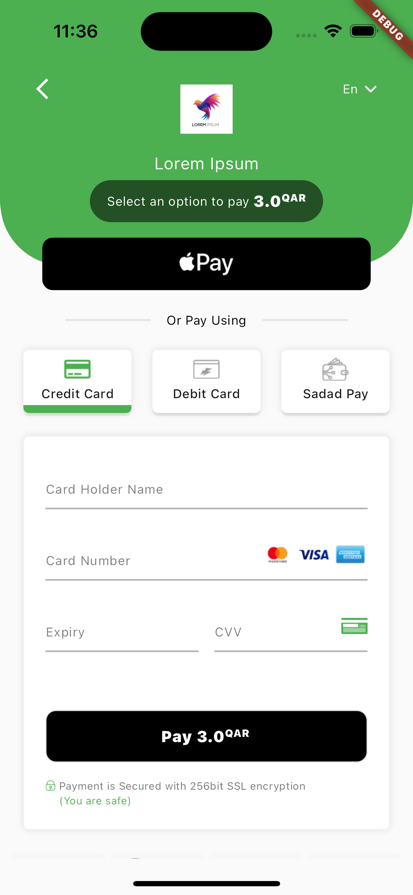
Example 1 :
PaymentScreen(
    orderId: "fdsgcfmgjd43424342g",
    productDetail: [],
    customerName: "demo",
    amount: 148.00,
    email: "[email protected]",
    mobile: "98989898",
    token: token,
    packageMode: PackageMode.release,
    isWalletEnabled: true,
    paymentTypes: [PaymentType.creditCard,PaymentType.debitCard,PaymentType.sadadPay],
    image: Image.asset("assets/sample-Logo.jpg"),
    titleText: "Lorem Ipsum",
    paymentButtonColor: Colors.black,
    paymentButtonTextColor: Colors.white,
    themeColor: Colors.green,
    googleMerchantID: 'BCR2D453R6Y72312',
    googleMerchantName: 'Sadad Payment Solutions'
);
Output 1:
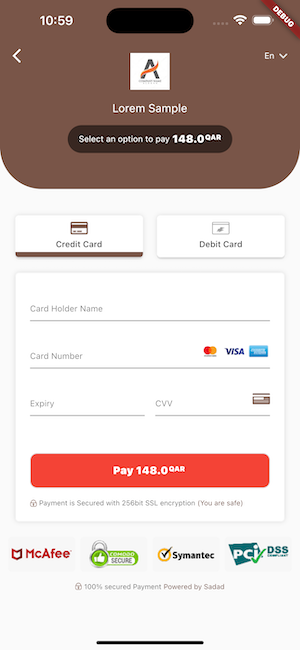
Example 2 :
PaymentScreen(
    orderId: "fdsgcfmgjd43424342g",
    productDetail: [],
    customerName: "demo",
    amount: 148.00,
    email: "[email protected]",
    mobile: "98989898",
    token: token,
    packageMode: PackageMode.release,
    isWalletEnabled: false,
    paymentTypes: [PaymentType.creditCard,PaymentType.debitCard],
    image: Image.asset("assets/Sample-Logo2.jpg"),
    titleText: "Lorem Sample",
    paymentButtonColor: Colors.red,
    paymentButtonTextColor: Colors.white,
    themeColor: Colors.brown
    googleMerchantID: 'BCR2D453R6Y72312',
    googleMerchantName: 'Sadad Payment Solutions'
);
Output 2: